


I’ve seen teams lose momentum on warm leads for one silly reason: nobody could quickly organize business contacts in one place. The email was in one inbox, the notes were in a spreadsheet, and the next follow-up lived only in someone’s head.
Organizing business contacts isn’t just administrative work; it’s a growth strategy. When your contacts are structured, searchable, and regularly updated, networking becomes intentional, follow-ups become timely, and relationships become stronger.
In this guide, I’ll share a simple, practical way to organize business contacts so your data stays clean and usable. I’ll also share 5 tools that will help you stay organized because in business, your network isn’t just a list of names, it’s your most valuable asset.
Why Organizing Business Contacts Matters
When contacts are spread across inboxes, spreadsheets, phones, and tools, you get issues that stack up fast.
1. Delayed Follow-Ups
When contact details and context live in different places, following up takes extra time. That delay adds up. A warm lead cools off, a customer question sits too long, and opportunities slip simply because you could not find everything you needed in one spot.
2. Inconsistent Messaging
If your team cannot see the same notes, emails, and history, your messaging starts to drift. One person follows one story, another follows a different one. To the customer, it feels like your business is not aligned, even if everyone is trying their best.
3. Weak Personalization
Personalization is hard when your contact record is incomplete. If you cannot quickly see what someone asked for, what they care about, or where they are in the process, you end up sending generic messages. That is where replies drop, and relationships stay surface-level.
4. Duplicate Outreach
When contacts are duplicated across tools, it is easy for two people to reach out to the same person without knowing. It wastes time, creates awkward moments, and can make prospects feel like a number instead of a relationship.
5. Team Confusion on “Who Owns What”
When ownership is unclear, follow-ups get missed or repeated. People assume someone else is handling it. Or multiple people jump in at once. Either way, progress slows, and accountability gets messy.
6. Messy Onboarding When Someone New Joins
New team members need context to do their job well. If contacts are scattered, they spend days hunting for basics like past conversations, deal status, and next steps. That slows onboarding and puts pressure on the rest of the team to fill gaps.
7. Stress When Switching Tools Because Data Ownership Is Unclear
Switching tools is stressful when you do not know where your most accurate contact data lives. If key contacts are sitting in personal inboxes or on someone’s phone, you worry about losing access, losing history, or losing relationships.
8. Why Spreadsheets or Outlook Stop Working as You Grow
Most businesses start with spreadsheets or Outlook because it feels simple. It works when the list is small, and one person manages everything.
But as volume grows and teamwork increases, it breaks down. Spreadsheets get outdated. Outlook stays tied to individuals. Updates do not sync. And your team spends more time searching, cleaning, and guessing than actually building relationships.
What “Organized” Contacts Actually Look Like
A contact list is organized when it feels effortless to take action. Not after digging through email threads or searching five places. Right now, at the moment.
Here is a simple test: your team should be able to answer these in under 10 seconds.
1. Who Is This Person and Why Do We Know Them?
You should not have to guess. An organized contact record makes it clear how the relationship started. Maybe they filled out a form, attended an event, were referred by a partner, or have been a long-time donor or customer. When that context is visible, your outreach feels natural and relevant.
2. What Is Their Lifecycle Stage Right Now?
Everyone on the team should see where the person stands today. Are they a new lead, an active opportunity, a customer, a renewal risk, or a past member you want to re-engage? When the lifecycle stage is clear, you stop sending the wrong message at the wrong time.
3. What Happened Last, and What Is the Next Step?
Organized contacts include a quick snapshot of the latest activity and the next planned move. That could be the last call, the last email reply, a meeting scheduled, or a note from the last touchpoint. And right next to it, a clear next step like “follow up Friday,” “send pricing,” or “share the proposal.” This is how follow-ups stay consistent even when multiple people are involved.
4. Who Owns the Relationship?
Ownership should be obvious. When it is not, follow-ups get missed or doubled. With organized contacts, you always know who is responsible, who is supporting, and who should not be stepping into the conversation.
5. What Segment Do They Belong To?
Segmentation helps your team communicate with clarity. Industry, region, interest area, donor vs member, customer type, or any label that matters to your business. When this is organized, you can personalize faster, target smarter, and report more accurately without cleaning data every time.
6. Names in a List vs a Working Contacts Organizer
Names in a list tell you nothing. A working contacts organizer tells you what to do next.
That is what “organized” really looks like: clear context, a visible lifecycle stage, recent history, the next step, a clear owner, and useful segments. Everything your team needs to move the relationship forward without scrambling.
The Simple 3-Layer System to Organize Contacts
Most top guides keep it simple: centralize, categorize, maintain. Here is the practical version:
The Three Layers That Keep Your Contacts Organized:
- Structure (fields + rules)
- Segmentation (tags/lists)
- Maintenance (cleaning schedule + ownership)
Everything below fits into those three layers.
Layer 1: Structure
1. Centralize Your Contact Data Into One Source of Truth
If your team is hopping between tools just to find an address, last email, or a phone number, engagement slows down. Centralization is the ultimate solution.
If you’re still relying on spreadsheets, this quick breakdown of customer database software will help you pick a cleaner ‘source of truth’ before you import anything.
Mini Workflow: One-Day “Contact Consolidation” Sprint
- Pick the one system that becomes the master (CRM, database, or even one spreadsheet temporarily).
- Import from your current sources (Excel/CSV, Google contacts, Outlook exports).
- Freeze edits in the old places for 7 days, so you do not create new chaos.
Try This Today
- List every place contacts live (spreadsheets, inboxes, phones, tools)
- Pick one “source of truth” by end of day
- Move only your top 100 active contacts first
2. Standardize Fields So Everyone Logs Contact Info the Same Way
This is where most teams quietly fail.
If one person stores “Industry” in Notes and another stores it as “Type,” your database becomes unsearchable.
I’ve found it gets easier when you follow a repeatable standardization approach, like the one explained in this guide on managing CRM data.
The “Must-Have” Fields for Most Businesses
Keep it lean. You can always add later.
- Full name
- Email + phone
- Company + role
- Lifecycle stage (Lead, Prospect, Customer, Partner, Donor, Member)
- Owner (person responsible internally)
- Last touch date
- Next step + due date
- Source (referral, event, inbound, cold outreach)
Try This Today
- Create 6–10 standard fields that everyone must fill
- Decide your “required fields” for new contacts
- Write a 5-line rule doc: “Where we store what”
Layer 2: Segmentation
3) Categorize Contacts Using Tags, Labels, or Categories
Every ranking-friendly contact organization guide pushes some form of categorization.
The trick is to use categories that match how your business actually works.
If you’re building your contacts organizer from scratch, this overview of a contact management system is a good reference for structuring tags, fields, and daily usage.
A Tag System That Stays Clean
Use 3 tag types:
Who They Are
Customer, Prospect, Vendor, Partner, Nonprofit, Donor, Member
What They Care About
Product interest, service line, use case, topic
Where They Are
Region, territory, timezone, market
Pro tip: Even basic tools like Outlook allow contact categories so you can sort contacts quickly by category.
Try This Today:
- Start with 10–15 tags max
- Add 3 “non-negotiable” tags: Lifecycle, Region, Source
- Tag your most active 50 contacts first, not the entire database
4) Segment Contacts for Targeted Outreach Without Overthinking It
Segmentation is what turns a contact list into a growth asset, and these CRM best practices do a good job showing how small teams keep segments usable long-term.
Instead of one giant list, you get smaller, useful lists your team can act on quickly. This is where a contacts organizer stops being storage and starts being a daily working system.
Mini Workflow: Build 3 High-Value Segments in 30 Minutes
Create these 3 segments first:
- Warm leads: engaged in last 30 days, not yet converted
- Customers needing follow-up: no touch in 45–60 days
- High-intent contacts: opened or clicked recent campaigns, requested info, replied
Try This Today:
- Create a segment for “Needs follow-up this week”
- Create a segment for “No response after 2 touches”
- Create a segment for “Top accounts by potential value”
Layer 3: Maintenance
5) Record Every Interaction So Context Never Gets Lost
This is where relationships are won.
When notes live in someone’s head or inbox, the relationship becomes fragile. When they live inside your contacts organizer, anyone can pick up the thread and move things forward.
Your contact record should capture:
- calls
- emails (sent and received)
- meetings
- notes (what mattered, objections, next steps)
- outcomes (interested, declined, later, referred)
Try This Today
- Add a “Call outcome” dropdown (Interested, Not now, Declined, Referral)
- Add a “Next step date” field and require it after each call
- Create a simple rule: “No next step, no close”
6) Deduplicate and Clean Contact Data on a Schedule
Most teams only clean contact data when things break. That is too late.
You want a lightweight, repeatable cleaning routine that keeps your system usable.
Mini Workflow: Weekly Contact Clean-Up (15 Minutes)
Every Friday (or Monday):
- Merge obvious duplicates (same email, same company)
- Fix bounced emails
- Archive dead contacts (or mark “Do not contact”)
- Standardize missing fields for new records
Try This Today
- Set one weekly “data hygiene” slot on the calendar
- Track 2 numbers: duplicates merged, records updated
- Create a rule for archiving: “No engagement in 12 months”
7) Fix Onboarding Chaos With a Simple Contact Management Playbook
When a new hire joins, they should not need to ask:
“Where do I find contacts?” or “How do I log updates?”
A simple playbook makes your system repeatable and reduces team confusion fast.
The Onboarding Checklist
- Here is where contacts live (one system)
- Here are the required fields
- Here is our tag list and what each means
- Here is how we log calls and outcomes
- Here is how we schedule next steps
- Here is who owns which accounts
Try This Today
- Create a 1-page “How we organize business contacts” doc
- Record a 5-minute screen walkthrough once
- Add it to your onboarding folder
8) Avoid Data Ownership Problems When Switching Tools
Switching tools is where businesses lose history, duplicate records, or break workflows.
The goal is to move without losing trust in your data.
Mini Workflow: Safe Migration Without Losing Your Mind
- Export contacts with a stable unique ID (email or internal ID)
- Export tags/fields mapping as a separate sheet
- Import a test batch of 50 contacts first
- Deduplicate immediately after import
- Lock down field definitions so your team does not create new variants
Try This Today
- Document field mapping before you migrate
- Assign one data owner for the migration week
- Run a post-migration dedupe sweep within 48 hours
5 Best Tools to Organize Business Contacts
If you want to organize business contacts without the usual spreadsheet chaos, these tools help you centralize records, segment lists, track conversations, and stay on top of follow-ups. Here’s a quick comparison to help you pick faster.
| Tool | Best for | Pricing |
|---|---|---|
| BIGContacts | Contact Management & Email Marketing | Free for growing teams. Paid plan starts at $9.99/month |
| HubSpot CRM | Centralizing Sales, Marketing, & Support Operations | Starts at $45/user/month |
| monday.com CRM | Workflow automation | Starts at $9/user/month |
| Streak | Contact & pipeline management | Starts at $15/user/month |
| Zoho CRM | Omnichannel Engagement | Starts at $9.5/user/month |
1. BIGContacts – Best for Contact Management & Email Marketing for Growing Businesses
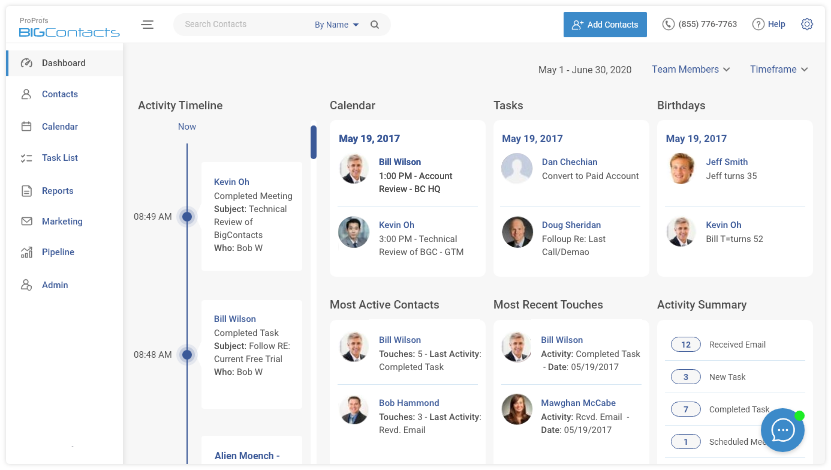
I currently use BIGContacts to keep all my contacts and conversations in one place, and it saves me from hunting through spreadsheets and inbox threads. I like how I can tag people by lifecycle stage, region, or interest and then pull up the exact list I need in seconds. It also helps me stay consistent with follow-ups because tasks and reminders sit right inside the contact record.
What I also appreciate is that the contact timeline keeps the full context visible. When I open a record, I can see notes, emails, activities, and next steps together, so I do not have to rely on memory. For a small team, it keeps everyone aligned on who spoke to whom and what needs to happen next.
Pros:
- Centralized contact records with activity timeline (emails, notes, tasks)
- Tagging, filters, and lists for fast segmentation
- Custom fields to store business-specific data
- Built-in task management with reminders for follow-ups
- Email tracking and templates for consistent outreach
Cons:
- No downloadable or on-premise version
- No dedicated account manager for the free plan, unlike the paid
Pricing:
A free plan is available for growing teams. Paid plan starts at $9.99/month
2. HubSpot CRM – Best for Centralizing Sales, Marketing, & Support Operations
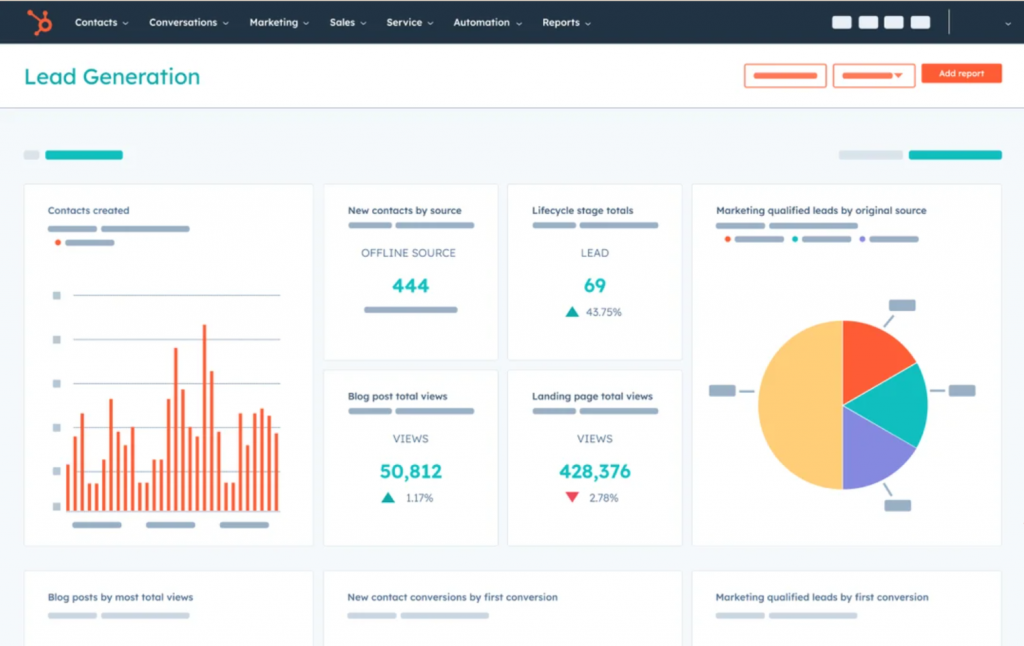
When I used HubSpot CRM, I liked how everything felt connected, especially if you also needed marketing and service workflows. It gave me a clean view of contact details along with deal stages, so it was easy to understand where each conversation stood. I also found it useful for teams that want a system that can scale into more advanced automation later.
What stood out for me was the overall ecosystem. If I wanted to add forms, email automation, or reporting dashboards, it was all there, but it can feel like a lot if your only goal is to organize business contacts. For smaller teams, I felt you need to be deliberate about setup so it does not become cluttered.
Pros:
- Unified contact timelines with deal and pipeline visibility
- Strong reporting dashboards for sales activity and performance
- Automation options across marketing, sales, and service tools
- Easy integrations with many popular apps
- Scales well for growing teams with multiple workflows
Cons:
- Paid plans can get expensive as needs grow
- Some email and workflow customization can feel complex
Pricing:
Starts at $45/user/month.
3. Monday.com CRM – Best for Workflow Automation

Monday.com CRM worked well for me when I wanted contact management to live alongside projects and internal workflows. I used boards to organize business contacts and deals, and I liked how easy it was to build automations for reminders and repetitive tasks. It worked especially well when my contact management needed to live alongside projects and internal workflows.
The biggest advantage for me was customization. I could create fields, views, and dashboards that fit the way I tracked outreach and follow-ups. The downside is that it takes a bit of initial setup thinking, but once it is configured, it is very smooth for day-to-day use.
Pros:
- Highly customizable pipelines, fields, and views
- Strong automation builder for reminders and task actions
- Dashboards for tracking deals and team activity
- Easy collaboration with comments and @mentions on records
- Integrations with tools like DocuSign and email apps
Cons:
- Some automation limits on lower tiers
- Can require setup time to feel like a true CRM
Pricing:
Starts at $9/user/month.
4. Streak – Best for Contact & Pipeline Management
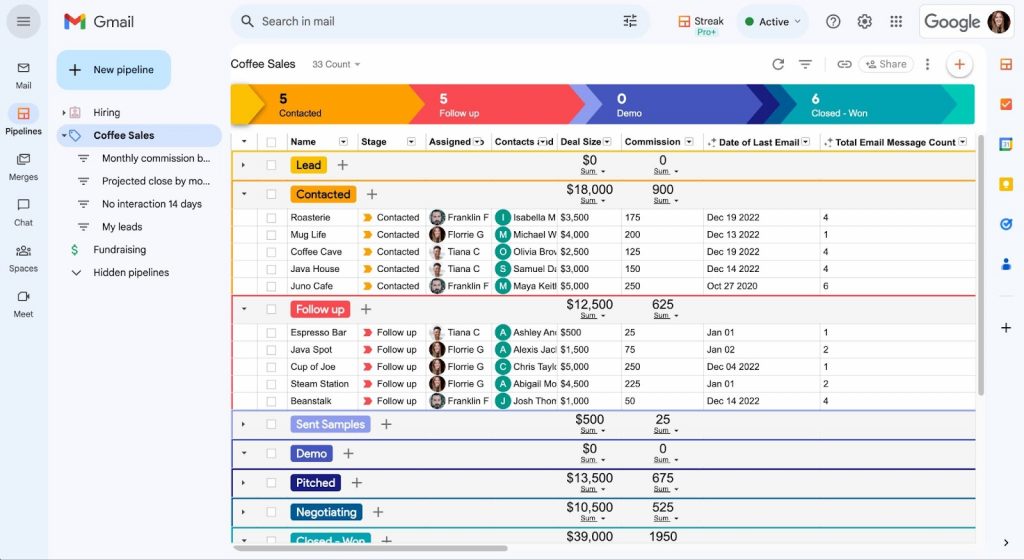
Streak was a comfortable fit because it lived inside Gmail, which meant I did not have to change how I worked day to day. I used it mainly to track conversations and move contacts through a pipeline without switching tabs all day. It was especially handy when most of my work happened in email and I wanted the CRM layer to stay lightweight.
For me, Streak worked best as a practical contacts organizer for Gmail users, not as a deep CRM for complex reporting or heavy automation. If your outreach is email-first and you want basic tracking, it is a comfortable fit.
Pros:
- Native Gmail workflow for contact and pipeline management
- Email tracking and scheduling capabilities
- Easy pipeline customization for simple sales processes
- Simple import options from Google Sheets and CSV
- Integrations available through tools like Zapier
Cons:
- Customer support experience can be inconsistent
- Advanced analytics and reporting are limited
Pricing:
Starts at $15/user/month.
5. Zoho CRM – Best for Omnichannel Engagement
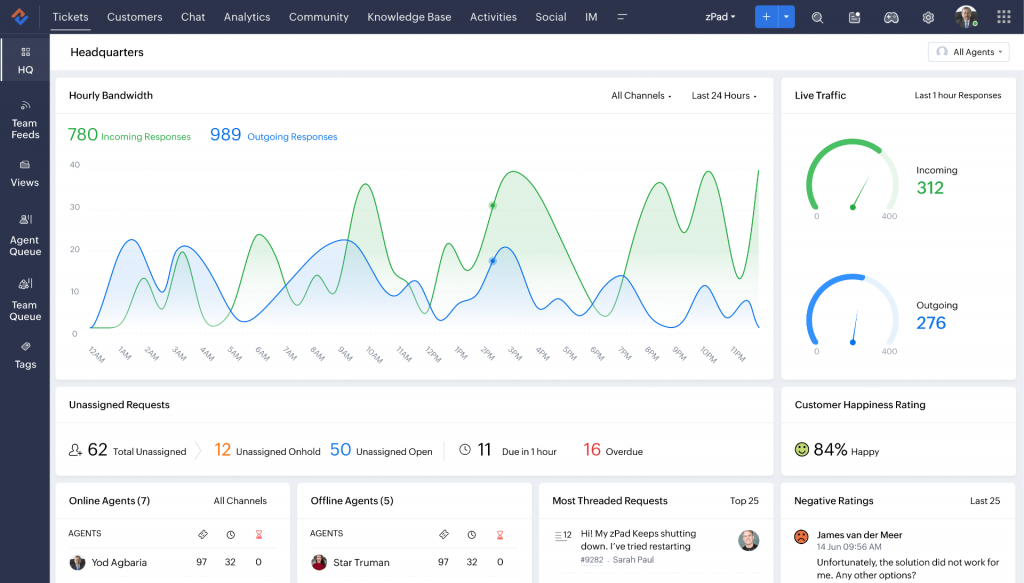
Zoho CRM gave me the most depth when I needed automation, reporting, and structured processes beyond basic contact management. I could set up workflows for follow-ups, build dashboards, and track activity at a more detailed level than lightweight tools typically allow.
The flip side is that it can feel dense at first. Once I spent time tailoring layouts and workflows, it became very capable. If the priority is quick contact organization with minimal setup, it may feel like a longer ramp, but for feature-heavy CRM needs, it is a strong option.
Pros
- Strong workflow automation for follow-ups and processes
- Detailed dashboards, forecasting, and reporting tools
- Customizable fields, layouts, and modules
- Multi-channel communication capabilities inside the CRM
- Mobile access for managing contacts on the go
Cons:
- The interface can feel cluttered for first-time users
- Email template customization can take time
Pricing:
Starts at $9.5/user/month.
If you’re still narrowing options, this list of free contact management software is a quick cross-check.
My Top 3 Picks for the Best Tool to Organize Business Contacts
If your goal is to organize business contacts without losing follow-ups, notes, or context, these three tools cover the most common needs I see, from simple contact tracking to full pipeline visibility.
1. BIGContacts
BIGContacts is the one I currently rely on when I need a clean, centralized contact database with enough structure to stay organized as things scale. I can tag and segment contacts, log emails and activities, and keep next steps visible so nothing slips through, even across a team.
2. HubSpot
HubSpot worked well when I wanted an all-in-one CRM that keeps contact history, emails, and tasks in one place. I liked how it supports structured relationship tracking and gives a clear view of who is engaged. It can feel heavy for very small teams, but it is powerful.
3. Monday.com CRM
Monday.com CRM felt best when I needed flexibility to organize contacts around my workflow, not the other way around. I used it to customize fields, automate reminders, and keep contacts connected to deals or projects. It is great when your process is unique and evolving.
Strengthen Relationships With Organized Business Contacts
When you organize business contacts properly, every follow-up gets easier. You stop digging through inboxes and sheets, and you start showing up with context, timing, and the right message for the right person.
The real win is consistency. Clean data, clear ownership, and simple segments help your team stay aligned, onboard faster, and avoid the usual “Who spoke to them last?” confusion.
If you want a straightforward way to keep everything in one place without overcomplicating your workflow, using a tool like BIGContacts CRM can quietly make the day-to-day smoother, especially for tracking notes, tasks, and follow-ups as you grow.
Frequently Asked Questions
How do I organize business contacts if they’re spread across Excel, phones, and inboxes?
Pick one “source of truth,” then import everything into it once. After that, only allow new contacts to be added through approved sources (forms, email sync, imports) so you do not slip back into scattered data.
How can I import business contacts from email into a contacts organizer?
Most tools let you import via CSV export from your email provider, or sync using Gmail/Outlook connections. The key is to map fields once (name, email, company, phone, tags) so future imports stay clean.
How do I avoid losing data when switching contact management tools?
Before migrating, export a full backup (contacts + custom fields + notes if possible), document your field mapping, and run a small test import first. Also, decide who “owns” key lists so nothing disappears during changeover.
What’s the best way to organize business contacts with tagging features?
Treat tags like simple labels you can act on: “Prospect,” “Customer,” “Vendor,” “Event attendee,” “Newsletter,” “Do not contact.” If tags do not lead to action, they will become clutter.
How do I keep contact data accurate without constant manual work?
Make updates part of real workflows: update the record right after a call, meeting, or email thread ends. Also, keep a simple monthly habit: export a list of “missing phone/company/title” and fill gaps gradually.
How do I sync business contacts across devices automatically?
If you store contacts in Google Contacts (or a synced account), contacts saved to that account can sync across devices signed into the same account. This is useful when teams work across phones and laptops.
Can I share business contacts with my team without giving everyone full access?
Yes, many tools support user permissions and team-based visibility so sensitive contacts (like VIP clients or partners) do not become “everyone can edit everything.”
What should I track for each contact to personalize communication?
Keep it lightweight: role, company, preferred channel, last touch, next step, and one personal/context note (like priority, interests, or pain point). That’s usually enough to sound like you remember them.
FREE. All Features. FOREVER!
Try our Forever FREE account with all premium features!