
I’ve lost count of how many times I’ve clicked “submit” on an order or a booking and then just waited. No email, no text, nothing to tell me it went through. That small gap between clicking a button and getting proof it worked is exactly what a confirmation email is meant to close, and when it’s done right, that anxious wait disappears within seconds.
A confirmation email is the automatic message a business sends the moment someone completes an action, like placing an order, booking a slot, or signing up for something. It’s not a sales pitch. It’s a receipt, a reassurance, and often the first real proof that a business is paying attention. Most of what I’ve learned about this comes from watching businesses set these up for the first time, usually inside a CRM they’re already using for contact management, and confirmation emails tend to be one of the smallest changes that make the biggest difference to how “put together” a business feels to a new customer.
In this guide, I’ll break down what a confirmation email actually is, how it works behind the scenes, and the 7 types of confirmation emails your business should probably have running right now. I’ll also cover the difference between confirming an order and confirming an email address, since people search for both and they’re not quite the same thing.
What Is a Confirmation Email?
A confirmation email is a transactional message triggered automatically after a customer completes a specific action, such as a purchase, booking, or sign-up. Unlike marketing emails, it isn’t optional reading. It’s information the customer is actively expecting and looking for.
You’ll also see this called a “confirmation mail” in some search results. Both refer to the same thing: an automated message that closes the loop on whatever the customer just did. It usually includes a short confirmation line, the key details of the transaction, and what happens next.
Why Do Confirmation Emails Matter for Your Business?
Confirmation emails matter because they remove doubt at the exact moment a customer is most anxious about whether their action succeeded. That reassurance builds trust, cuts down on “did my order go through?” support tickets, and gives your brand a professional first impression.
Here’s what a good confirmation email does for your business:
- Reduces support tickets by answering the customer’s first question before they ask it
- Builds trust at a moment when the customer is watching closely
- Creates a natural, low-pressure spot for a review request or a related recommendation
- Protects your sender reputation, since confirmation emails get opened and rarely marked as spam
A study by Salesforce in 2024 shows 82% of service professionals agree that customer expectations are higher than they used to be. Confirmation emails are one of the easiest ways to meet that bar without adding headcount, since the message goes out automatically the moment the action happens.
Keep Customers Informed Without the Manual Follow-Up
How Does a Confirmation Email Work?
A confirmation email works through a simple chain of events: an action triggers it, a system pulls in the relevant details, and the email sends within seconds, with no person clicking “send” manually. Behind the scenes, this usually runs through your CRM, email tool, or website platform, all connected so that data flows automatically from the action to the inbox.
Here’s a simple way to picture it. Say a customer buys a candle from your online store. The moment they click “Place Order,” that click fires a trigger inside your connected email tool or CRM. The system immediately pulls the customer’s name, order number, item details, and shipping address from the order data, drops all of it into a pre-built template, and sends the email out through your connected mail server, usually within a second or two. From your side, once this is set up, it runs on its own every single time, whether that’s your 1st order of the day or your 500th.
Here’s how to send a confirmation email step by step:
- Set The Trigger: Decide what action should fire the email, like a form submission, a purchase, or a new booking. This is the event that starts everything.
- Build The Template: Create a branded email with placeholders (often called merge tags or personalization tokens) for the details that will change, such as name, order number, or date.
- Connect Your Data: Link the template to your CRM, website form, or booking tool so real customer and order details fill in automatically instead of being typed in by hand.
- Test It: Submit a test order or booking yourself and check that every placeholder populates correctly and that the email lands in the inbox, not spam.
- Turn On Automation: Once it’s tested, the email should fire on its own every time the trigger happens, with no manual sending required from anyone on your team.
To make sure these emails actually land in the inbox and not the spam folder, most email tools and CRMs also handle technical checks like sender verification and domain authentication in the background, so you’re not left managing that part manually.
This is also the part that trips people up when they search for “how to confirm on email” or “how to confirm the email.” It’s rarely about typing a reply by hand. It’s about setting up the trigger once so the confirmation sends itself every time after that.
What Are the 7 Confirmation Emails Every Business Should Send?
Different actions call for different confirmation emails, and most businesses are only sending one or two of them. Here are the 7 that cover almost every customer touchpoint, with a real-world example for each.
1. Order Confirmation Email
An order confirmation email verifies that a purchase went through and summarizes what was bought. It should include the order number, item details, total price, and delivery estimate.
Standalone facts to include:
- Order number and date
- Item names, quantities, and prices
- Shipping address and delivery estimate
- A tracking link or a note that tracking is coming soon
Example: A small online candle shop sends this the moment payment clears, listing the 2 candles ordered, the total charged, and a note that a shipping email will follow within 24 hours.
2. Booking or Appointment Confirmation Email
A booking confirmation email confirms the date, time, and location of a reservation or appointment. This matters most in travel, healthcare, salons, and any service business that runs on scheduled slots.
Standalone facts to include:
- Date, time, and location
- Booking reference number
- What the customer should bring or prepare
- A link to reschedule or cancel
Example: A home care agency capturing leads through a website form doesn’t just need the lead saved. It needs the person on the other end to instantly know their request for care was received, with a follow-up call time confirmed, not left wondering if the form even worked.
3. Registration or Sign-Up Confirmation Email
A registration confirmation email tells someone their account, webinar spot, or event ticket is set up. It usually asks the person to verify their email address as a next step.
Standalone facts to include:
- Confirmation that the sign-up was successful
- A verification link (for double opt-in)
- What to expect next
- Support contact information
Example: A webinar host sends this within seconds of sign-up, confirming the date and time, and includes an “add to calendar” button so the registrant doesn’t forget.
4. Subscription Confirmation Email
A subscription confirmation email confirms a recurring plan, membership, or newsletter sign-up has started. It sets expectations for billing dates and what’s included.
Standalone facts to include:
- Plan name and billing amount
- Renewal date
- A link to manage or cancel the subscription
- Support contact information
Example: A software company sends this the moment a free trial converts to paid, listing the plan name, the monthly cost, and the exact date the next charge will hit.
5. Cancellation Confirmation Email
A cancellation confirmation email confirms a subscription, order, or booking has been successfully canceled. It creates a paper trail that protects both the business and the customer if there’s ever a dispute.
Standalone facts to include:
- What was canceled and when
- Refund timeline, if applicable
- An option to give feedback on why they canceled
- An invitation to come back
Example: A streaming service sends this the moment someone cancels, confirming the exact date access will end and offering a one-click way to resubscribe later.
6. Payment Confirmation Email
A payment confirmation email verifies that a transfer, invoice payment, or renewal charge went through successfully. Accuracy matters most here, since this is often the record a customer keeps for their own files.
Standalone facts to include:
- Amount charged and payment method
- Date and transaction ID
- A downloadable receipt, if possible
- A contact for billing questions
Example: A recruitment agency running milestone emails for candidate placements is really sending a version of this. The moment a placement fee clears, the person on the other end wants proof, not silence, especially if 2 or 3 people on their team need to see that record later.
7. Feedback or Inquiry Confirmation Email
A feedback confirmation email lets someone know their message, question, or support request was received. It keeps the customer calm while they wait for a full response.
Standalone facts to include:
- A short thank-you or acknowledgment
- Expected response time
- A link to FAQs in case the answer is already there
- A way to reach support directly
Example: A support team sends this the second a contact form is submitted, letting the customer know their message was received and that a reply is coming within 24 hours.
Automate the Confirmation Emails Your Customers Expect
How Do You Confirm an Email Address (Not Just an Order)?
Confirming an email address is different from sending an order confirmation. It’s about verifying that the email a person typed in is real and belongs to them, usually through a process called double opt-in.
Here’s how it typically works:
- The person enters their email address on a form.
- An automatic message goes out with a “confirm your email” link or button.
- The person clicks the link, and their email is marked as verified in your system.
- Only verified addresses are added to your active contact list going forward.
Single opt-in skips this step and adds the email right away, which is faster but lets in typos and fake addresses. Double opt-in takes a few extra seconds from the customer but keeps your list clean and helps you stay compliant with regulations like GDPR.
What Mistakes Should You Avoid When Sending Confirmation Emails?
The most common mistake is delay. If a confirmation email takes more than a few seconds to land, customers start doubting whether their action worked at all, and some will try again, creating duplicate orders or bookings.
Other mistakes to watch for:
- Treating the confirmation email like a promotional email, with heavy sales content
- Using a vague subject line like “Thanks” instead of something specific like “Your Order #4521 is Confirmed”
- Skipping mobile testing, when most people open these on their phone first
- Leaving out a support contact, so customers have no way to ask a question
- Letting dynamic fields break, so the email shows blank names or missing order details
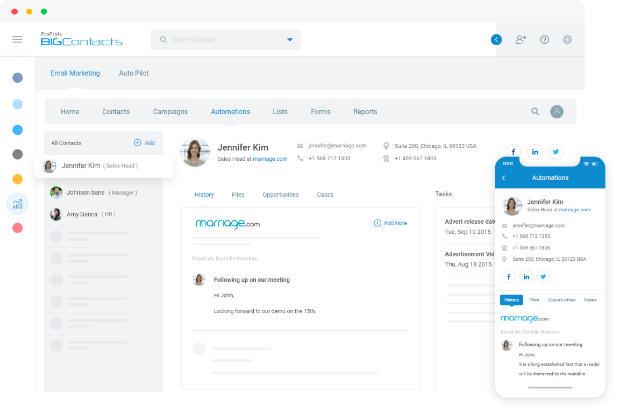
How Does a CRM Like BIGContacts Make Sending Confirmation Emails Easier?
A CRM makes confirmation emails easier by connecting your contact data, your webforms, and your email templates in one place, so the trigger, the details, and the send all happen automatically.
Here’s what that setup looks like in practice:
- A lead fills out a webform on your website (WordPress, landing page, or otherwise).
- The contact is automatically added to your CRM with their details tagged and organized.
- A confirmation email fires instantly, using the contact’s own information to fill in the template.
- A follow-up sequence continues automatically, whether that’s a booking reminder, an onboarding step, or a check-in.
Entity-attribute facts about BIGContacts:
- Stores contact details, custom fields, tags, and interaction history per record
- Sends automated email sequences triggered by webform submissions
- Supports drag-and-drop email templates for confirmations and follow-ups
- Includes a sales pipeline view alongside contact and email tools
- Offers a forever free plan for up to 100 contacts, with paid plans starting at $9.99 per month per 1,000 contacts
This matters most for solo operators and small teams, like an insurance agency rebuilding its client list from scratch or a recruitment agency automating placement updates. Instead of manually replying to every form submission, the confirmation goes out the moment the form is submitted, and the business owner finds out about the lead without having to babysit an inbox.
Set It Up Once. Never Write a Confirmation Email by Hand Again
Start Sending Confirmation Emails That Build Instant Trust
A confirmation email costs you almost nothing to set up, and it closes the exact moment of doubt that follows every order, booking, or sign-up. Whether it’s an order confirmation, a booking confirmation, or a simple “we got your message,” each one tells the customer that your business is paying attention.
If you’re only sending 1 or 2 of the 7 types covered here, start by mapping out which actions on your website or in your business currently get silence instead of a response. That gap is usually where lost trust and unnecessary support tickets come from.
For teams looking for something simple to start with, a tool like BIGContacts makes it easy to set this up without hours of training or a big budget. You connect your webform, build one template, and let the automation handle the rest from there.
Frequently Asked Questions
What is the difference between a confirmation email and a receipt?
A confirmation email verifies that an action was received and is being processed, while a receipt is proof of payment specifically. Many confirmation emails include receipt details, but a receipt alone doesn't always confirm order status.
Do confirmation emails count as marketing emails?
No, confirmation emails are transactional, not promotional, since they're triggered by a specific customer action rather than sent to market a product. A small amount of marketing content, like a recommendation, is fine as long as it stays secondary.
How soon should a confirmation email be sent?
A confirmation email should send within seconds of the triggering action. Any noticeable delay makes customers doubt whether their order or booking actually went through.
Can I add product recommendations to a confirmation email?
Yes, a small, relevant recommendation or review request works well in a confirmation email. Keep it secondary to the main confirmation details, since the primary goal is reassurance, not selling.
Is a confirmation email legally required?
In many cases, yes, especially for purchases, subscriptions, and account sign-ups, where regulations require proof of the transaction and clear opt-in records. Requirements vary by region and industry, so check what applies to your business.
What should the subject line of a confirmation email say?
The subject line should state exactly what happened, such as "Order #4521 Confirmed" or "Your Appointment on May 3 Is Confirmed." Vague lines like "Thanks!" get missed in a crowded inbox.
How do I track if my confirmation emails are being opened?
Most email tools and CRMs, including BIGContacts, track opens and clicks automatically once the email is sent through the platform. Watching these numbers helps you catch delivery issues before they turn into support tickets.
Can small businesses automate confirmation emails without coding?
Yes, most modern CRMs and email tools offer drag-and-drop templates and simple trigger setup with no coding required. BIGContacts, for example, lets you connect a webform to an automated confirmation email without writing a line of code.
What happens if a customer does not receive a confirmation email?
Usually it lands in spam, the email address was mistyped, or the trigger failed to fire correctly. Checking your sender reputation and testing the trigger regularly helps catch these issues early.
Should confirmation emails be personalized?
Yes, including the customer's name and the specific details of their action makes the email feel accurate and reduces confusion. Generic, unpersonalized confirmations feel automated in the wrong way and can raise doubt instead of removing it.
Can I send confirmation emails from my own business domain?
Yes, sending from your own domain instead of a generic address builds trust and avoids spam filters flagging the message. Most CRMs, including BIGContacts, support sending from your own verified domain.
Is BIGContacts free to use for sending confirmation emails?
Yes, BIGContacts offers a forever free plan for up to 100 contacts, which is enough for many small businesses to test automated confirmation emails before upgrading. Paid plans start at $9.99 per month per 1,000 contacts as your list grows.
FREE. All Features. FOREVER!
Try our Forever FREE account with all premium features!