

If you’ve ever scrambled to remember whether Jack from XYZ Solutions needed a follow-up last week or struggled to find the phone number of Amy, the event lead you met at that conference, you already know how chaotic contact management can get.
Today, contact database software is no longer a “nice to have.” It’s the backbone of effective communication, personalization, and long-term relationship building.
After years of helping teams of all sizes streamline their systems, I’ve narrowed down the 12 best contact database software tools you should explore right now. Whether you’re organizing your first 1,000 contacts or managing millions across global teams, these tools can help you clean up chaos, boost accuracy, and give your team something every business needs — clarity.
Ready to stop fighting your data and start using it to grow? Let’s get started.
What Is a Contact Database?
A contact database is simply a digital collection of information about your contacts or customers. It’s like a digital Rolodex that you can use to keep track of everyone you interact with, be it clients, colleagues, partners, or acquaintances. This can include their names, email addresses, phone numbers, and other relevant details specific to your business or organization.
Contact databases help manage customer relationships, optimize marketing campaigns, and track sales leads.
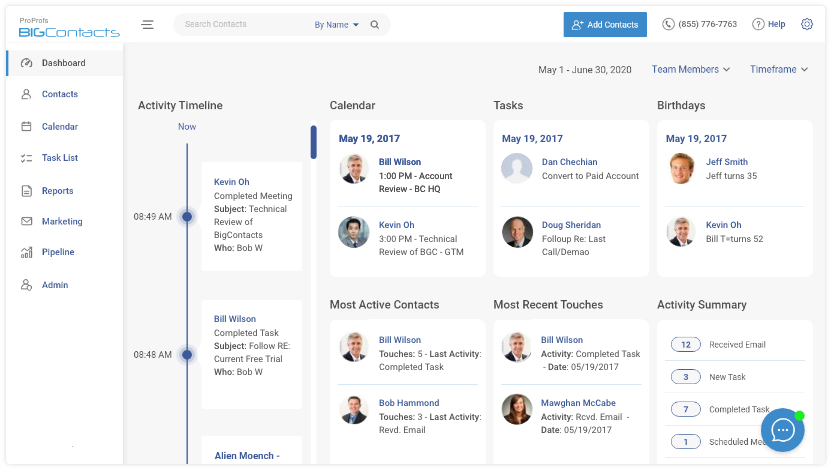
Take BIGContacts, for example:
The database management platform offers a user-friendly dashboard for managing your contacts. Once you sign up for an account, you can easily add new contacts or import existing ones from other sources like your email or phone. You can also search for and filter your contacts based on various criteria, such as job title, location, or custom tags you’ve created.
It also enables you to see a timeline of all the interactions you’ve had with that contact, including emails sent and received, notes added, and even calendar events.
Why You Need to Create a Contact Database
How you manage your contacts will directly influence your relationships. Here are some key reasons why building a good contact database is crucial:
1. Personalize Experiences
Customers today expect personalized interactions. In fact, 62% of consumers say brands will lose their loyalty if communications aren’t tailored to their needs.
A well-organized database puts each contact’s preferences and history at your fingertips, so you can customize emails, product recommendations, or support responses. This personal touch shows customers that you value them, leading to higher engagement and loyalty.
2. Strengthen Relationships
Having complete contact information and interaction history helps you anticipate needs and follow up appropriately. You can reference past conversations or purchases, making every touchpoint more meaningful. By tracking tasks and reminders in a contact database, you ensure no client falls through the cracks when it comes to follow-ups.
After all, “A satisfied customer is the best business strategy of all,” as customer service guru Michael LeBoeuf famously said.
Consistently attentive communication fosters trust and long-term relationships, which ultimately lead to repeat business and referrals.
3. Enhance Marketing Effectiveness
A segmented contact database allows for hyper-targeted marketing campaigns. You can group contacts by demographics, behavior, or lead source and send content that resonates with each segment.
This level of targeting results in higher open rates, click-through rates, and conversions. Also, by keeping all your lead and customer data in one system, you can track campaign performance (emails sent, responses, sales funnel progression) with built-in analytics. These insights help you refine your marketing strategy over time for maximum ROI.
4. Improve Productivity
A centralized contact database is a productivity boon for your team. Sales, marketing, and support can all access the same up-to-date information without needing to dig through separate files or bother each other for details.
Automation features in contact management tools (like automated data entry from web forms or workflow triggers for follow-ups) further save time. The result is a smoother workflow and more focus on high-value activities (closing deals, solving problems) instead of hunting down info.
Now that you understand the importance of a well-managed contact database and how to build one, let’s look at some of the best software tools that can help you create and maintain an excellent contact database.
12 Best Contact Database Software Tools in 2026
To help you find the ideal solution, I researched and compiled a list of contact databases, selecting 12 outstanding tools.
| Tool | Best For | Pricing |
|---|---|---|
| BIGContacts | Contact Management & Email Marketing | Free for small teams. Paid plan starts at $9.99/month |
| HubSpot CRM | Centralizing sales, marketing & support in one platform | Starts at $15/user/month |
| ZoomInfo | Large B2B contact database & sales intelligence | Starts at ~$250/user/month |
| Apollo.io | All-in-one B2B prospecting & sales engagement | Starts at $49/user/month |
| Lusha | Finding B2B leads via browser extension | Starts at $36/user/month |
| LinkedIn Sales Navigator | Social selling and lead generation on LinkedIn | Starts at $79.99/user/month |
| Salesforce CRM | Comprehensive CRM for large sales teams | Starts at $25/user/month |
| Pipedrive | Visual sales pipeline management | Starts at $14/user/month |
| Monday Sales CRM | Customizable CRM with project management | Starts at $12/user/month |
| Zendesk Sell | CRM integrated with Zendesk support suite | Starts at $19/user/month |
| Zoho Bigin | Lightweight CRM for small businesses | Starts at $7/user/month |
| Cognism | Global B2B contact database with verified phone data | Starts at $150/user/month |
Now, let’s explore each of these tools in detail. By the end, you should have a clear understanding of which contact database software best suits your needs.
1. BIGContacts CRM – Best for Contact Management & Email Marketing
I’m using BIGContacts CRM extensively, and it has proved to be one of the most intuitive contact management tools for my team. From the start, I appreciate how easily it centralizes everything. I can easily import my contact list and have all our client info, emails, notes, and deal history sitting in one clean dashboard. It offers me a complete 360° view of every relationship in a way that feels effortless.
I also find the built-in email marketing and automation features quite impressive. I can set up drip campaigns, and BIGContacts handles them smoothly, sending emails at the right times and even alerting me the moment someone opens an email.
And the visual sales pipeline has become one of my favorite features. Dragging and dropping deals through stages is oddly satisfying, and it provides a clear picture of where every opportunity stands. The interface is clean and easy to navigate, so even when I’m exploring new features, I’m never overwhelmed.
Pros:
- Offers a 360° view of contacts, consolidating all data (info, emails, notes, tasks) in one place for easy reference.
- Effective automation capabilities to help you set up drip email campaigns, automatic follow-up reminders, and task assignments.
- Includes a visual pipeline management tool for sales, which makes tracking deals and sales stages intuitive and transparent for the whole team.
- Highly customizable with tags, custom fields, and list segmentation, so you can tailor the database to your business needs and segment contacts for targeted communication.
Cons:
- No downloadable or on-premise version
- Dark user interface option not available
Pricing:
Free for small teams. Paid plan starts at $9.99/month
2. HubSpot CRM – Best for Centralizing Sales, Marketing & Support Operations
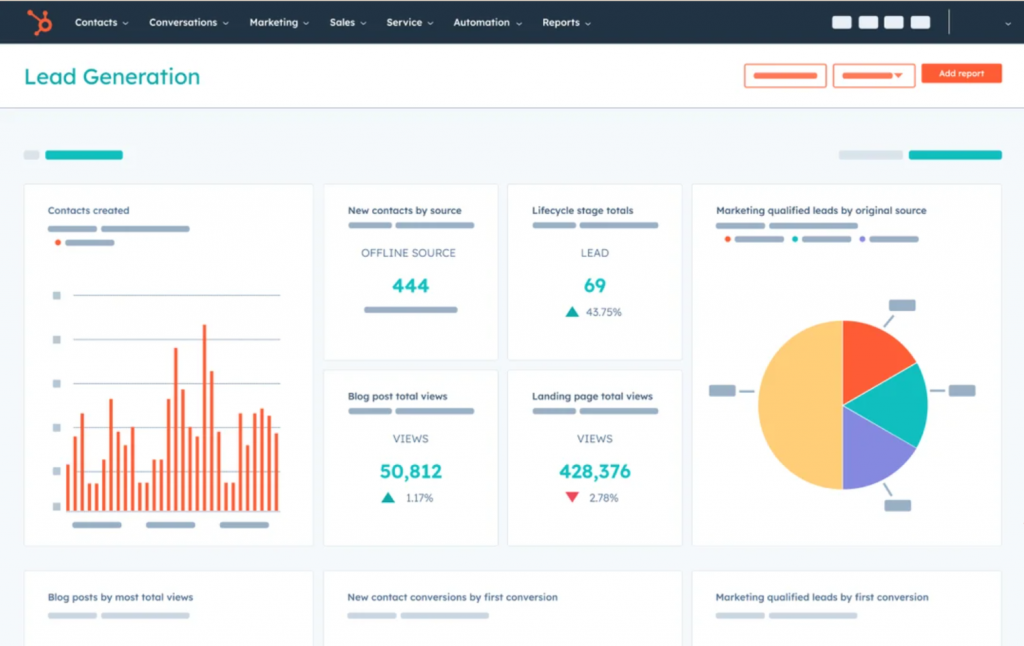
When I used HubSpot CRM, I was impressed by how it truly felt like an all-in-one platform. HubSpot automatically enriched my contact data – for example, I’d enter a company email, and it would pull in the contact’s company information, social profiles, etc., which saved me a significant amount of research time.
A highlight for me was the task and activity tracking. I’d get reminders for upcoming calls or tasks, and I could log emails directly through my Gmail (thanks to HubSpot’s email integration). It kept my follow-ups timely and organized. The CRM’s built-in analytics were another significant advantage – I could open the reporting section and instantly see how our sales funnel was performing or which marketing emails were converting the best.
However, I will say HubSpot can be a little advanced and complicated for a small team. There were features we didn’t use at all initially (like advanced workflow automations or social media scheduling). It wasn’t a problem – the platform is flexible enough that you can ignore what you don’t need.
Pros:
- Combines CRM, marketing automation, and customer service in one – providing a single source of truth for all customer interactions.
- Offers a visual workflow builder to automate repetitive tasks (e.g., nurturing email sequences, lead assignments, deal stage updates).
- Auto-enriches contact profiles with data from the web and tracks every interaction (emails, website visits, form fills), giving you deep insight into each lead’s behavior.
- HubSpot integrates with tons of other tools (from Gmail/Outlook to e-commerce and webinar platforms), allowing it to fit smoothly into almost any existing tech stack.
Cons:
- Some of the more useful features, such as A/B testing or custom reporting, are locked behind higher-tier plans.
- With so many features and modules, new users often face a steep learning curve before they can fully utilize its automation and reporting capabilities.
Pricing:
Starts at $15/user/month.
3. ZoomInfo – Best for Large B2B Contact Database & Sales Intelligence
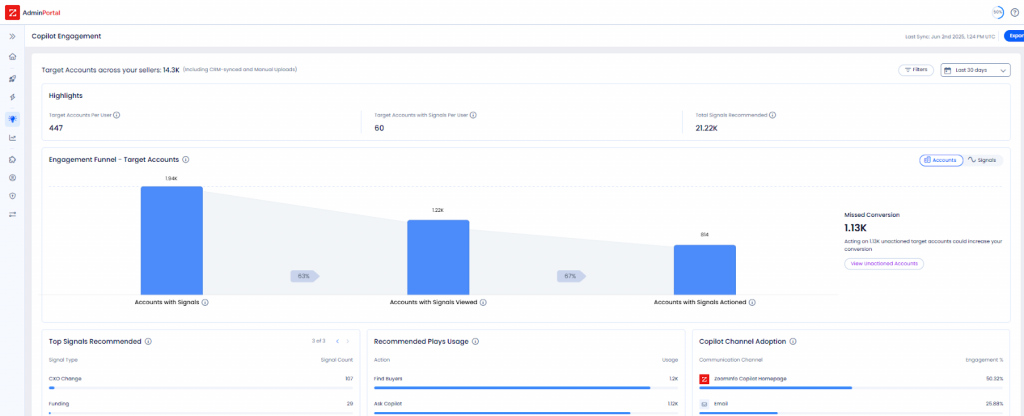
I used ZoomInfo when our sales team needed to break into new markets, and it was remarkable how quickly we could find accurate contact info for key decision-makers. It felt almost too easy compared to the manual research I’d done before!
One thing I found valuable was the depth of company intelligence available. Beyond just contacts, ZoomInfo would also display organizational charts, funding news, and the technologies the company uses, among other information. The platform also features built-in tools for outreach – for example, I can directly push a contact into our CRM or sequence tool, which saves time on data entry.
We also tried ZoomInfo’s intent signals feature, which flags companies that show buying intent for specific keywords. It was a bit advanced for us, but I can see how larger teams would love getting alerts like “these 15 companies are currently researching solutions like yours.”
Pros:
- ZoomInfo has one of the largest databases of business contacts and companies worldwide, with direct dials and emails that are often hard to find elsewhere.
- Beyond contacts, it provides firmographic details, org charts, tech stack info, and even trigger events like recent funding or hires.
- Includes sales engagement features like email templates, dialing, and analytics (via products like Engage and Chorus).
- You can filter prospects by very specific criteria (industry, title, company size, geography, etc.), which makes it easy to hone in on your ideal customer profile.
Cons:
- Data is oriented for B2B sales/marketing – not a con for many, but if you need a contact database for B2C or personal contacts, ZoomInfo’s data may not be relevant.
- Occasionally, we found that some contact info could be outdated or inaccurate (e.g., a person who recently changed jobs).
Pricing:
Starts at ~$250/user/month.
4. Apollo.io – Best for All-in-One B2B Prospecting & Sales Engagement
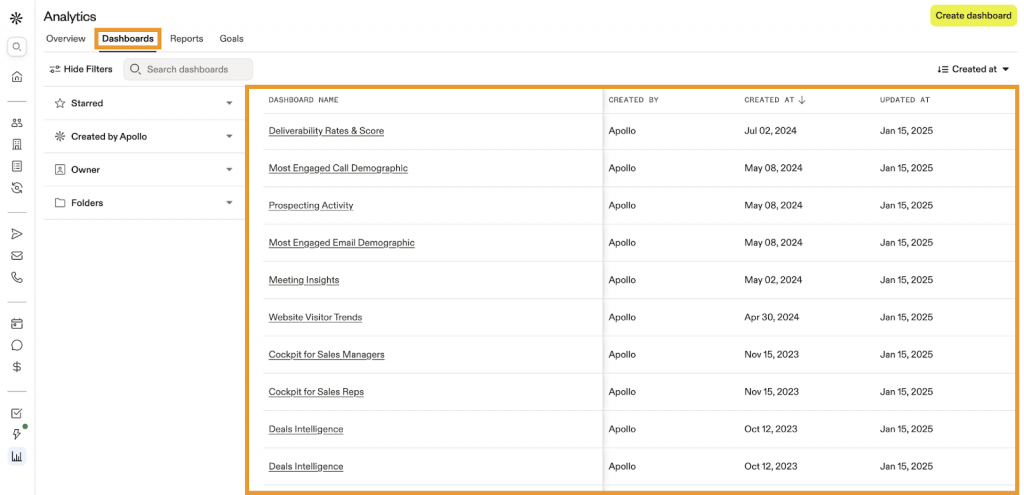
Image source: Apollo
When I first logged in to Apollo.io, I was greeted with a clean interface that combined a B2B contact database with outreach tools. In practice, it meant I could search for new leads and then immediately add them to an email sequence – all in one place. Apollo handled sending the emails and even tracked who opened or replied, so I could focus on the conversations with interested prospects.
One feature I appreciated was Apollo’s lead scoring and recommendations. It uses some AI magic to highlight which leads in a list might be the best fits, which helped me prioritize my time. Apollo also integrated nicely with our existing CRM.
The calling feature was decent, too. I remember using Apollo to directly dial a few leads right from my browser. It recorded the call and transcribed it – having those call recordings was handy for sharing insights with my team.
Pros:
- Apollo offers a vast B2B contact database (over 200 million contacts) with numerous filters, enabling you to find leads that match your ideal customer profile.
- Apollo has built-in sales engagement tools (email sequencing, click-to-call dialer, task management).
- Apollo syncs with popular CRMs like Salesforce and HubSpot, so new contacts and conversation data can flow into your main CRM.
- Apollo provides AI-based lead scoring and even suggests who to contact next. It can also log call transcripts and analyze them for insights, which is great for refining your pitch.
Cons:
- The contact data, although extensive, is not entirely accurate. Occasionally, you might encounter an outdated email or number (like any database).
- Apollo’s interface, while clean, has a lot of functionality. It can feel a bit overwhelming for brand-new users until you get the hang of the workflow.
Pricing:
Starts at $49/user/month.
5. Lusha – Best for Finding B2B Leads via Browser Extension
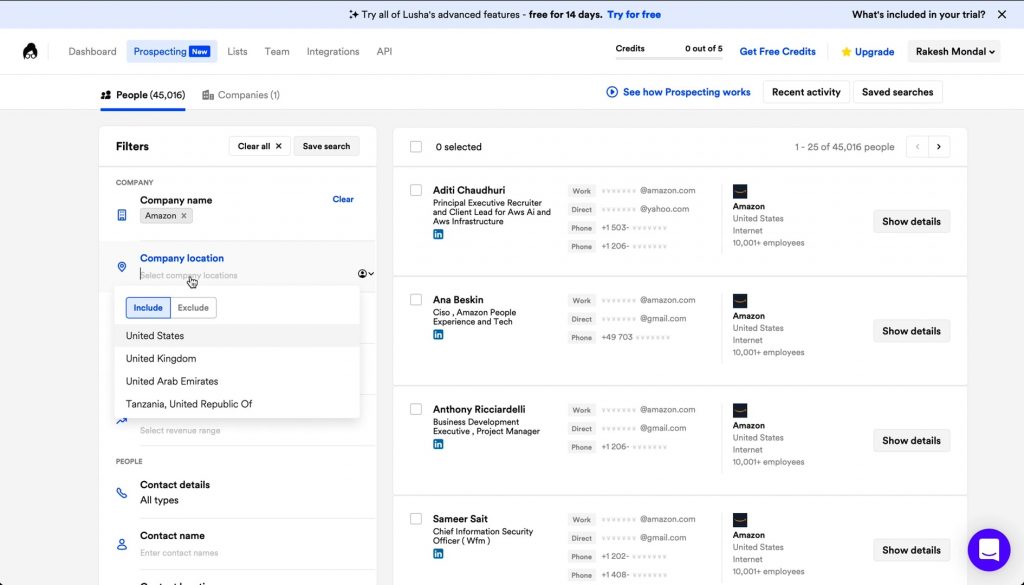
Image source: Saas UI Design
My primary use of Lusha was through its Chrome browser extension, especially on LinkedIn. I’d be looking at a prospect’s LinkedIn profile – say a marketing director at a company we’re targeting – and Lusha’s little widget would pop up with that person’s verified business email and sometimes their direct phone number. It was almost magical to get a valid email with one click, without having to do any guesswork.
One thing I appreciated is that Lusha emphasizes data compliance and accuracy. They have this multi-step verification process for their data. Lusha’s interface is very straightforward. It also integrates with several CRMs and sales tools.
Because Lusha is so focused on capturing contact details, it doesn’t offer many additional features beyond that. However, that’s also its strength – it’s lightweight and easy to use. I particularly found it useful for quickly building a small list of very specific contacts. For example, I visited a company’s LinkedIn page, clicked through to the key employees, and used Lusha to gather the emails of the ones I wanted (it took just a few minutes).
Pros:
- Lusha’s browser extension makes it incredibly easy to find contact info while browsing LinkedIn or company websites.
- They use a rigorous verification process (including a 7-step data verification) to ensure the emails and phone numbers provided are valid and compliant.
- It’s ideal if you just need a quick way to get a few key contacts. The interface is simple, and you don’t have to be a tech wizard to use it.
- Lusha works with popular CRMs, including Salesforce, HubSpot, and Pipedrive. You can export contacts or sync them, making it easy to move the data into your sales pipeline.
Cons:
- Lusha operates on a credits model, which means you have to watch your usage. If you need bulk contacts regularly, you might burn through credits quickly and need a higher plan (which can get costly).
- Compared to large platforms, Lusha’s database coverage is smaller. It shines with common titles in tech and business, but for very niche industries or roles, you might not always find a result.
Pricing:
Starts at $36/user/month.
6. LinkedIn Sales Navigator – Best for Social Selling & Lead Generation on LinkedIn

Image source: Technology Advice
I’ve used LinkedIn Sales Navigator as part of our sales process, and it’s essentially a must-have if LinkedIn is a significant source of leads. One thing I loved was the advanced search: I could pinpoint prospects with very granular filters – such as finding “IT managers in the healthcare industry in California with 10+ years of experience.”
Another powerful feature was being able to save leads and accounts. I set up custom lead lists for different campaigns, and Sales Navigator would send me alerts on those leads – such as when someone changed jobs or shared a post on LinkedIn.
InMail, LinkedIn’s direct messaging feature for connecting with people outside your network, was another tool I frequently used with Sales Navigator. It gave me a decent allocation of InMail credits each month, and I had surprisingly good response rates compared to cold emails in some cases – perhaps because LinkedIn messages feel a bit more personal/professional. Sales Navigator also integrates with some CRMs, which allowed me to log those LinkedIn activities to our CRM (so we had a unified record of communication).
Pros:
- Provides advanced search filters on LinkedIn’s huge network (over 900 million professionals).
- You can save leads and accounts to curated lists. Sales Navigator then delivers updates like job changes, news mentions, or LinkedIn activity for those saved leads/accounts, helping you find triggers for outreach.
- Allows you to send a set number of InMail messages directly to people you’re not connected with.
- In the Team/Enterprise versions, you can see who on your team is engaging with which prospects, access shared notes, and utilize features like Smart Links.
Cons:
- While you get great insights, you don’t get direct contact info (email/phone) from LinkedIn Sales Navigator.
- If your target audience isn’t very active on LinkedIn or doesn’t use it (some industries or certain levels might not be on there much), Sales Navigator’s value diminishes. It’s great for many B2B scenarios, but not universal.
Pricing:
Starts at $79.99/user/month.
7. Salesforce CRM – Best for Comprehensive CRM in Large Sales Organizations
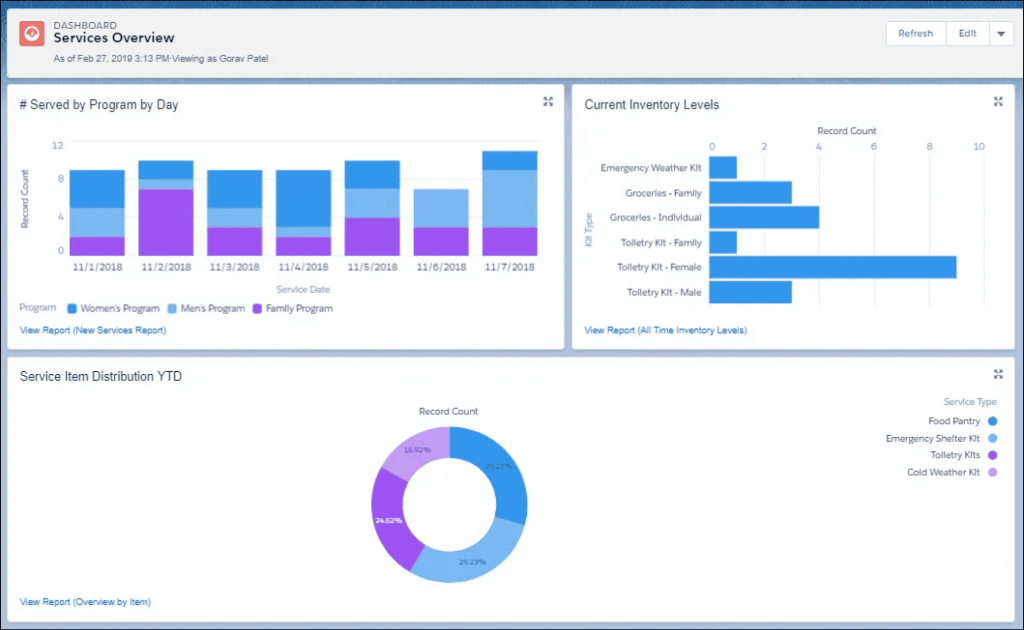
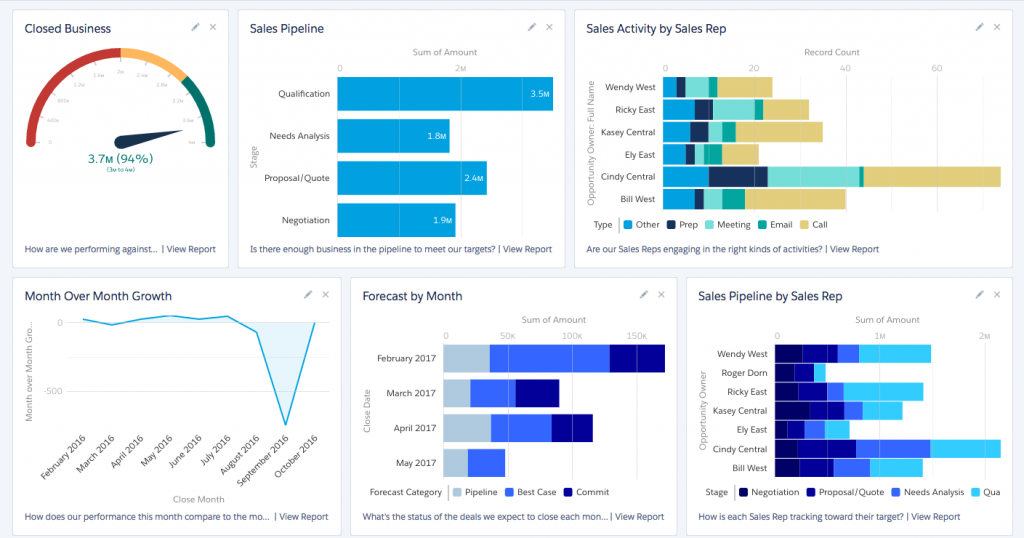
The first word that comes to mind when thinking of Salesforce is ‘powerful.’ This platform can practically do anything you dream up in terms of managing contacts, companies, deals, support tickets, you name it. When I was using Salesforce, I had a complete 360° view of each of our customers: every email logged, every call, all the deal history, plus support cases from our service team.
One feature I found invaluable was the reporting and dashboard capability. We built custom reports to track things like “leads by source by month” and “sales pipeline by stage by rep”, etc. The AppExchange (Salesforce’s app store) was another unique feature – we integrated Salesforce with our phone system and marketing software through ready-made apps, extending functionality without heavy development.
However, as an admin, I spent a lot of time customizing objects, fields, and automations (with tools like Process Builder and Flow). As a user, it took training and practice to get comfortable.
Pros:
- You can manage leads, contacts, accounts, opportunities, customer support cases, and more on a single platform. This provides a truly 360° view of each customer (from first touch through ongoing support).
- You can add custom fields, create custom objects, design custom page layouts, and set up automated workflows.
- Salesforce’s reporting tools let you aggregate and visualize your contact and sales data in almost any way imaginable.
- Salesforce has a vast marketplace of third-party apps and integrations (the AppExchange).
Cons:
- The interface has many menus and options, and without proper training, adoption can suffer.
- Salesforce has been modernizing its UI (Lightning Experience), but there are still areas that do not feel as snappy or modern as newer CRMs.
Pricing:
Starts at $25/user/month.
8. Pipedrive – Best for Visual Sales Pipeline Management
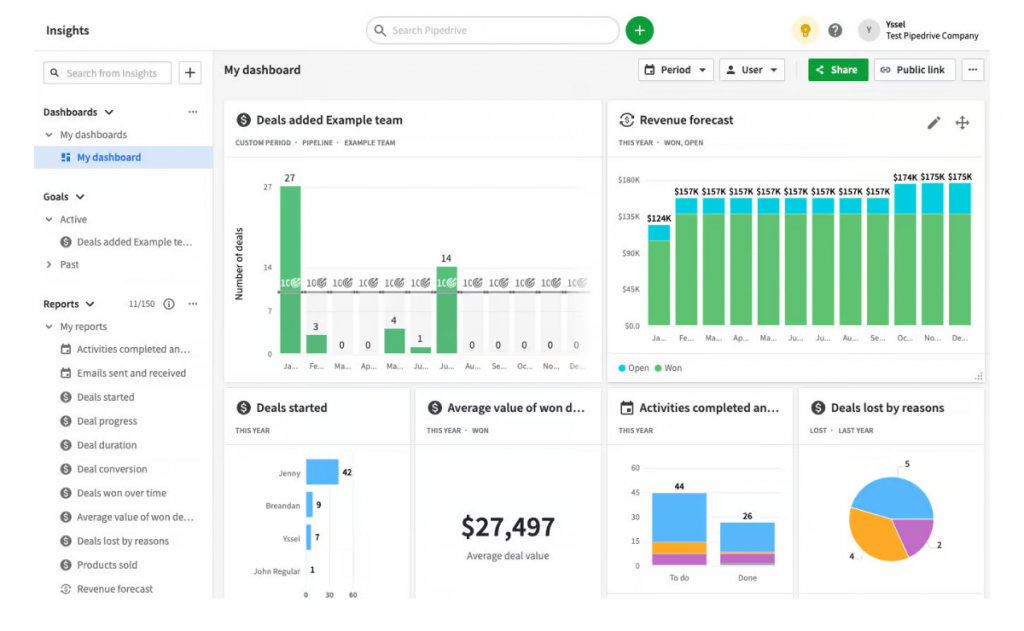
The Pipedrive interface is highly visual and deal-centric, which was ideal for our sales team. I personally loved the Kanban-style view of our sales pipeline; I could drag and drop deals from one stage to the next. Pipedrive also had a helpful feature where you could set an “activity” (such as a call or email) for each deal. If any deal had no next activity scheduled, it would prompt you by marking it red or displaying it in a special list.
Adding contacts and their organizations was straightforward, and I liked that I could customize the fields to our needs. Pipedrive’s email integration saved me time as well – I synced it with my Gmail, so emails to contacts were automatically logged under their record.
On the other hand, as we grew, we began to feel some limitations. Pipedrive is great for sales, but it’s not an all-in-one platform. For example, we had to use other tools for detailed marketing campaigns and customer support, and Pipedrive became one piece of a larger puzzle.
Pros:
- Pipedrive’s signature feature is its drag-and-drop sales pipeline. It gives a clear visual of deals in each stage, making it easy to manage and update status by simply moving deals along.
- The interface is clean, uncluttered, and intuitive. Adding contacts, deals, and activities is straightforward with no unnecessary steps.
- Pipedrive encourages a discipline of always having the “next action” scheduled for each deal. It highlights deals that have no upcoming activity, helping ensure that no prospect is forgotten.
- You can add custom fields and customize pipelines to fit your process. Plus, Pipedrive integrates with many other tools (email, calendars, marketing apps).
Cons:
- Pipedrive is primarily a sales CRM. It lacks built-in modules for things like customer support tickets or in-depth marketing automation.
- The reporting and dashboard capabilities are decent for sales metrics (conversion rates, sales forecasts, etc.), but they’re not highly advanced.
Pricing:
Starts at $14/user/month.
9. Monday Sales CRM – Best for Customizable CRM with Project Management

Since Monday is known for its project boards, using it as a CRM felt both unusual and interesting. Monday CRM is essentially built on Monday’s highly customizable boards and automations. We were able to create separate boards for leads, customers, and partner contacts, each with customized columns that we defined.
The drag-and-drop interface for moving items through groups was super intuitive. We also leveraged Monday’s automation recipes – such as sending an alert to our team’s Slack channel when a new lead was added or automatically assigning a task.
What I personally enjoyed was the visual and colorful nature of everything. Each contact or deal was represented as a row on a board with colored statuses, making it clear at a glance what was happening. We even added a timeline column for follow-up dates, which Monday displayed as a simple calendar view when needed.
Pros:
- Monday Sales CRM lets you build custom boards for contacts, deals, etc., with whatever columns you want.
- Monday.com is known for its visually appealing, color-coded interface.
- You can set up automation “recipes” easily – e.g., send an email or notify someone when a status changes, or move an item to a new board when a deal is won.
- If your workflow involves project delivery or onboarding after a sale, Monday can handle that in parallel.
Cons:
- Unlike out-of-the-box CRMs, Monday CRM requires you to configure boards and fields to represent your CRM data.
- Monday is a relatively new player in the CRM space, so some advanced features (such as deep email integration, advanced deal forecasting, or complex relationship linking between companies and contacts) may not be as effective as those found in dedicated CRM platforms.
Pricing:
Starts at $12/user/month.
10. Zendesk Sell – Best for CRM Integration With Existing Zendesk Support
I tried out Zendesk Sell (formerly called Base CRM) because we were already using Zendesk for customer support and thought it’d be nice to have our sales tool in the same family. One thing that stood out was how it integrated with the Zendesk support system.
The contact and deal management in Zendesk Sell is solid. I liked the Smart List feature, which essentially allows you to create custom, filtered views of contacts or deals. I would set up smart lists, for example, to display all deals in a certain region or all contacts tagged as warm leads, and I could save those views to easily revisit them later.
The built-in calling and email tracking were nice as well – I made some calls directly from the app using their VOIP feature, and it logged those calls onto the contact’s timeline. Sending emails from Zendesk Sell also automatically tracked opens, which helped me gauge interest.
Pros:
- If you use Zendesk for customer support, Sell can integrate to show support tickets related to your contacts.
- It offers integrated calling and email tracking. You can call directly from the CRM (and record calls) and send emails with automatic open tracking.
- The CRM allows you to create custom “smart lists” which function like dynamic reports or views.
- Zendesk Sell’s mobile app is effective. Field sales representatives can easily update deals, look up contact details, or add notes verbally after a meeting.
Cons:
- Compared to some CRMs, Zendesk Sell has fewer customization options. You can add custom fields and such, but you don’t have deep custom module building or extensive layout changes.
- Zendesk Sell is primarily a sales CRM. It doesn’t include marketing automation or advanced campaign management.
Pricing:
Starts at $19/user/month.
11. Zoho Bigin – Best for Lightweight CRM for Small Businesses
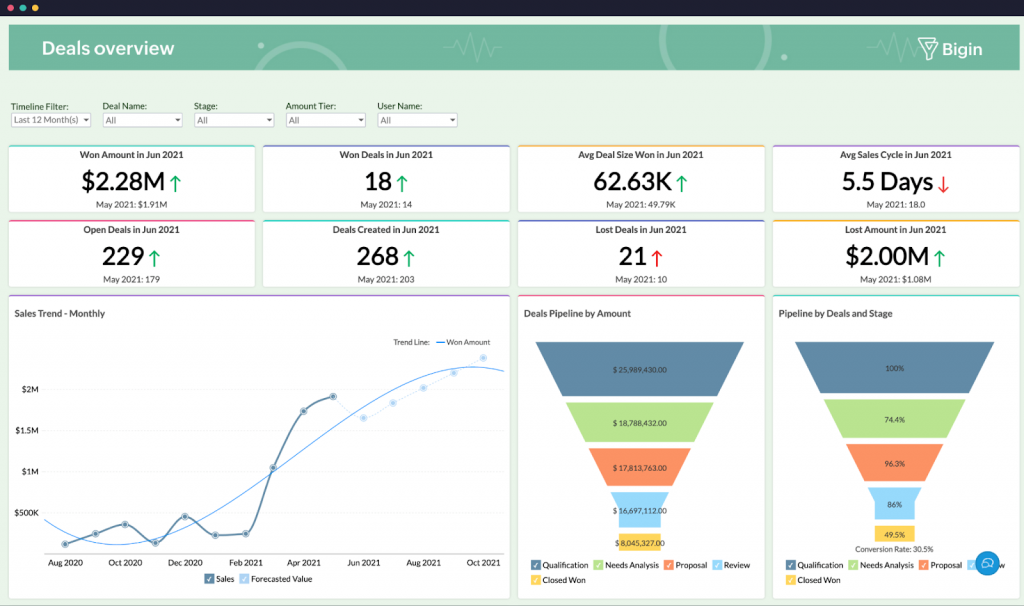
Image source: Zoho
I experimented with Zoho Bigin when helping a friend set up a simple CRM for her small business. Bigin is essentially Zoho’s pipeline-centric CRM that’s slimmed down for small teams. Setting it up was a breeze – we imported a CSV of contacts and deals, and Bigin automatically linked things like companies to contacts where it could.
The interface was clean, and it provided a pipeline view similar to other kanban-style CRMs, which was nice for visualizing sales stages. One of the things I liked about Bigin was that it wasn’t overloaded with features we didn’t need. It covers the basics: contacts, companies, deals, activities (tasks/events), and a few customizable fields.
Scheduling follow-up activities was straightforward, and we set up some simple workflow rules (like sending an email template whenever a deal moved to “Won”). It even had a mobile app that my friend could use to quickly add notes right after meeting a client.
Pros:
- Bigin is very easy to set up and use, even for those who have never used a CRM. Its interface is uncluttered and focuses on essential CRM functions.
- It offers a kanban-style pipeline view of deals, which is great for tracking sales opportunities.
- Bigin can integrate with other Zoho apps (and via Zapier for external apps). If you already use Zoho Mail, Zoho Books, etc., it slots in nicely.
- Even though it’s lightweight, you can add custom fields to capture info specific to your business.
Cons:
- By design, Bigin is not as feature-rich as full-fledged CRMs. It lacks advanced functionalities like detailed analytics dashboards, advanced territory management, or complex workflow automation.
- Bigin allows integrating with email to an extent and has phone call logging, but it’s not a comprehensive communication platform.
Pricing:
Starts at $7/user/month.
12. Cognism – Best for Global B2B Contact Database with Verified Phone Data
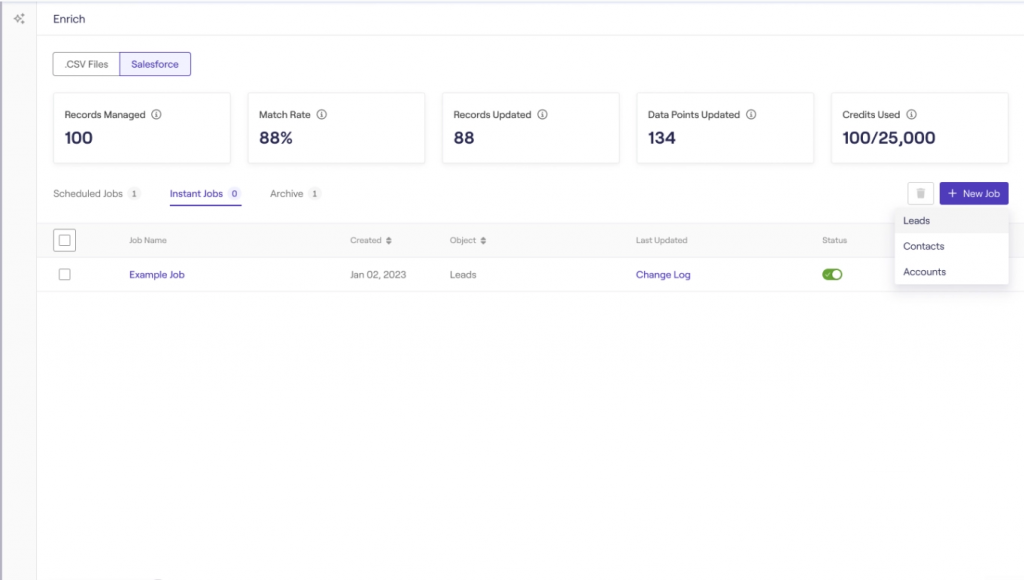
Image source: Warmly AI
Cognism markets itself as having a strong global database (with an emphasis on compliant data, especially for phone numbers), and I found that to be true. The standout feature for me was their Diamond Data®, which is what they refer to as their phone-verified contacts.
Searching in Cognism was straightforward. I could filter by usual firmographics and also by things like technologies used or even intent signals for certain activities. I also liked the integration options – we were able to push Cognism data directly into our CRM and into Salesloft for cadences.
In terms of compliance, Cognism seemed very up-front. Being GDPR-focused, it provided information such as a notice of when data was last updated or verified. This was reassuring, as we were aware of privacy regulations.
Pros:
- Cognism specializes in providing verified phone numbers (Diamond Data®) for contacts.
- Cognism has strong data coverage in Europe and other regions, which many US-centric databases often lack. It’s built with privacy laws in mind, ensuring the data provided is compliant.
- The platform provides intent signals and trigger events (through partners such as Bombora). This means you can identify companies that are actively researching topics related to your product.
- Cognism integrates with major CRMs and sales engagement tools. This lets you seamlessly export enriched contacts into your workflows.
Cons:
- Typically, the plans have usage caps (number of contacts, etc.). If you need massive volumes of data, you might find the allowances limiting or the cost of a higher tier plan steep.
- Cognism gives you contacts and company info, but it’s not a CRM or engagement platform. You will still need other tools to manage the outreach process (emails, calls) and to nurture those leads.
Pricing:
Starts at $150/user/month.
My Top 3 Picks for the Best Contact Database Software
Need an effective contact database solution, but not sure which one to choose? Based on my experience, here are my top three recommendations:
1. BIGContacts
BIGContacts truly shines for small, mid-sized, and growing businesses that need an easy yet powerful way to manage contacts and nurture relationships. It offers an intuitive 360° view of your customers and leads, combining contact management with email marketing and automation. BIGContacts provides robust features (like a visual sales pipeline and segmentation) without overwhelming the user.
2. HubSpot
HubSpot CRM is ideal if you’re looking for an all-in-one platform that scales. The real kicker is its ecosystem: as your needs expand, HubSpot has a Marketing Hub, Sales Hub, and more, which integrate natively. It’s extremely user-friendly, and while it has tons of features (lead scoring, AI insights, etc.), it can grow with you – from a solo user up to an enterprise team.
3. ZoomInfo
ZoomInfo is my go-to recommendation when the priority is high-quality B2B contact data. If your business needs to build a large contact list or find very specific leads, ZoomInfo delivers. In my experience, it provided extensive information on prospects – including direct dials, verified emails, and org charts – that significantly improved our outreach success.
Proven Tips to Build Your Contact Database
Creating a contact database isn’t just about adding names to a software program. It’s about keeping your data clean, organized, and genuinely useful. Here’s how you can make that happen:
1. Choose the Right Software
The best contact database tools make your work easier, not harder. Look for one that’s simple to use, automates routine tasks like follow-ups, and syncs with your email or CRM. Ensure it supports easy imports, robust data privacy (compliant with GDPR or CCPA), and responsive customer support. Before you commit, take advantage of a free trial to see how well it fits your workflow.
2. Customize It to Fit Your Business
Your database should adapt to your process, not the other way around. Add custom fields, tags, and categories that reflect your needs. For instance, if you’re in B2B sales, tag contacts by industry or company size. Set up your dashboard so that the most important details—such as upcoming follow-ups—appear first.
3. Segment for Smarter Outreach
A single long contact list helps no one. Break it into smaller, more meaningful groups using filters or tags. You can segment by customer type, region, or even product interest. This makes it easier to send the right message to the right people.
To learn more about how segmentation helps boost conversions, check out this Customer Segmentation Guide.
4. Keep Your Data Secure
Your contact database holds valuable information, so protect it. Utilize software that incorporates encryption, two-factor authentication, and user permissions. Regularly clean outdated or duplicate entries and stay compliant with privacy laws. Protecting your data builds trust—and keeps your business safe.
Keep Leads at Your Fingertips with Contact Database Software
An organized contact database can significantly enhance your workflow. When your data is clean, accurate, and easily accessible, every email, call, and follow-up feels more intentional. You stop chasing scattered information and start focusing on what really matters — building meaningful connections that drive growth.
Choosing the right software is the first step. Think about what makes your day easier: automation that saves time, reports that highlight progress, and integrations that bring your sales and marketing together. Many platforms now offer free trials or flexible plans, so take time to explore a few. The right one won’t just store your data — it will turn it into insights you can actually act on.
If you’re a small team or just starting out, BIGContacts CRM is a great place to begin. It’s simple, intuitive, and helps you stay on top of every client conversation without feeling overwhelmed. Additionally, the free plan provides small businesses with the space to grow before upgrading. Once you experience how effortless contact management can be, you’ll never go back to spreadsheets again.
Frequently Asked Questions

What features should I look for in contact database software?
When selecting software for your contact database, look for capabilities that match your business’s workflow. Key features include an intuitive import/export system, easy custom fields and tags, automation for follow-ups or alerts, robust segmentation and filtering options, integration with email/calendar/CRM tools, and compliance with data-privacy regulations like GDPR or CCPA.
How is a B2B contact database different from a regular contact list?
A B2B contact database focuses on business relationships — the people and companies relevant to your industry-specific outreach, lead generation, and sales. These databases typically include firmographic data (company size, industry, revenue), direct-dial phone numbers, buying-intent signals, and tools to help you identify decision-makers. In contrast, a regular contact list might simply store names and basic info.
FREE. All Features. FOREVER!
Try our Forever FREE account with all premium features!